2.5 Android Version Features and Restrictions
This chapter describes the difference in the mechanism as Biz / Browser in the Android version .
Differences about Android version in general
○ The Android version of the CRS execution engine uses the same as Biz / Browser V. In addition, Unicode is adopted as the internal character code as in the Mobile version.
○ When resolving identifiers such as method names, variable names, and external resource constants, double-byte characters may be handled without distinguishing between uppercase and lowercase letters. Please be careful when using identifiers that use double-byte alphabetic characters or Greek characters.
○ Similar to Biz / Browser Mobile, for objects with the UseTapAndHold property defined, the RClicked event is fired only when UseTapAndHold = $ TRUE is set.
○ The line feed code that can be used is “\ n” or “\ r \ n” unlike the PC version and Mobile version.
○ Unlike the PC version and Mobile version, the Japanese yen currency symbol uses full-width “¥”.
○ Floating-point arithmetic results may differ slightly due to differences in platforms and architectures.
○ If you move the focus while inputting using IME with Edit type object etc., the character string being input will be confirmed unlike the PC version and Mobile version.
○ It is equipped with the concept of security level that is not installed in Biz / Browser Mobile. See About Security Levels for rules.
○ Due to the specifications of the Android OS, the Biz / Browser process may be forcibly terminated automatically when the Biz / Browser is not displayed in the foreground. Therefore, it is necessary to develop the processing / operation flow, etc. in consideration of this. (As a CRS program, it can be described by using the Root.SetReloginURL method, Root.ReloggedIn property, Root.WindowStateChanged event, etc.)
○ Biz / Browser follows the behavior that depends on the terminal and OS. Therefore, there may be differences in the results and behavior of some functions.
About the permissions required by Biz / Browser AI
Biz / Browser AI, like other popular Android apps, requires what is called permissions from the Android OS to achieve its functionality.
Permissions specify what features your Android app may have access to, and you’ll see a list of them when you install your Android app.
Android apps are prohibited by the Android OS from accessing features other than the requested permissions.
This permission also limits the processing that can be executed in the Android standard library and third-party libraries using the ExternalObject package (Java integration), so please check the required permissions in advance before using the library.
The permissions required by Biz / Browser AI for the Android OS are as follows.
| Permission | Explanation |
|---|---|
| android.permission.ACCESS_COARSE_LOCATION | Permission to access approximate location information ( network base station ) |
| android.permission.ACCESS_FINE_LOCATION | Permission to access detailed location information (GPS) |
| android.permission.ACCESS_NETWORK_STATE | Permission to network state |
| android.permission.ACCESS_WIFI_STATE | Permission to Wi-Fi status |
| android.permission.BLUETOOTH | Permission to paired Bluetooth devices |
| android.permission.BLUETOOTH_ADMIN | Allow Bluetooth device search and pairing operations Added from AI Ver. 1.0.2 |
| android.permission.DISABLE_KEYGUARD | Allow to disable key lock Added from AI Ver. 1.0.1 |
| android.permission.INTERNET | Full internet access permission |
| android.permission.VIBRATE | Allow vibration control |
| android.permission.WAKE_LOCK | Allow the device to disable sleep Added from AI Ver. 1.0.1 |
| android.permission.WRITE_EXTERNAL_STORAGE | Allowing access to the content in the SD card |
| android.permission.WRITE_SETTINGS | Allow general system settings ( change screen brightness, etc. ) |
| com.android.launcher.permission.INSTALL_SHORTCUT | Permission to create shortcuts Added from AI Ver. 1.0.2 |
Available memory size
A general device running the Android OS has 512MB to 2GB of RAM, but the memory size that can be used for activities in Android apps (corresponding to one screen of the application) is limited to 16MB to 48MB. This limitation also applies to Biz / Browser AI, so be careful about the memory size used when handling huge data and images.
(You can use the Runtime.GetMaxMemory method for the maximum available memory size, the Root.SetMemoryLimitThreshold method for investigating memory usage, and the Root.MemoryLimitExceeded event).
Differences in User Agents
The User Agent when making a request to the Web server differs between the PC version and the Mobile version. Please be careful when the process is branched by UserAgent.
| UserAgent | |
|---|---|
| PC版 | Biz/Browser |
| Mobile版 | Biz/Browser Mobile |
| Android版 | Biz/Browser AI |
SYS Object
The value of the SYS object is different.
| SYS_CLIENT | |
|---|---|
| PC版 | Biz/Browser |
| Mobile版 | Biz/Browser Mobile |
| Android版 | Biz/Browser AI |
Also, since SYS_CLIENT_VERSION is also the running version, you need to be careful if the process is branched using SYS_CLIENT_VERSION or SYS_CLIENT in the existing CRS program.
Constant「$ANDROID」
When executed with Biz / Browser AI, the constant “$ ANDROID” will be “1”. By using this, it is possible to describe branch processing that is processed only when it is executed on the Android version and ignored on the PC version or Mobile version.
root object, Form object directly under root
In the Android version, the main window (root object) is maximized on the screen at startup and cannot be changed. The Form object directly under root does not work with the size of root unlike the PC version and Mobile version. If you specify a value other than 0 for the X and Y properties, it will be ignored.
Handling of character strings
Unicode characters are stored in the String object, and the number of characters and processing unit is Unicode 1 character unit.
The character code conversion rules in CRS are as follows.
| — CRS file — ◇ During CRS analysis, if there is a BOM, it follows the BOM. In other cases, it is Shift-JIS when the OS language setting is Japanese, and ISO / IEC 8859-1 when the language setting is other. |
| — String class — ◇ The number of characters is the same as how to count UTF-16. |
| — Input / output related — ◇ The character string set in the ByteArray class object is treated as UTF-8. ◇ In the input / output of File class and Security package, it is treated as UTF-8. -The pass (password) of the second argument of the Decryptor class DecryptString method is treated as UTF-8. -The pass (password) of the second argument of the Encryptor class EncryptString method is treated as UTF-8. ◇ Input / output in HTTP package -The character string specified by the httpRequest method is treated as UTF-8. -The response data of the object of httpResponse class is handled as ByteArray. -It is treated as UTF-8 in the ReadLine method of httpResponse class . However, if charset is specified in Content-Type of HTTP response header, it will be treated as a character string of that character code. ◇ Input / output in XML package -It is treated as UTF-8 in the Parse and Load methods of the XmlDOMImplementation class. -The Save method of the XmlDocument class follows the encoding specified by the second argument. ( Default: UTF-8) ◇ Input / output in CSV package -It is treated as UTF-8 in the Parse method, Load method, and Save method of CSVDocument class. -It is treated as UTF-8 in the Get method of CSVDocument class. However, if charset is specified in Content-Type of HTTP response header, it will be treated as a character string of that character code. |
The following specifications have been abolished from AI Ver. 1.0.1
-The Get method of the CSVDocument class follows the encoding specified by the csvDocument constructor argument. (The default is Shift-JIS when the OS language setting is Japanese, and ISO / IEC 8859-1 in other cases.)
MaxLength property of Edit type object
In the Android version, the MaxLength property is unified by the number of characters (Unicode unit) unlike the PC version.
IMEMode
The Android version does not allow you to control the input mode of the IME. For the state of SIP (Software Input Panel) when IME mode is specified, refer to the IMEMode property of each class.
How to handle and display fonts
Due to the difference in the font built into the device, the line spacing and character width will differ compared to the PC version and Mobile version.
The display when the character string does not fit in the display area and the result of word wrap processing are different from Windows.
Bold and italics apply only if the device has the appropriate font.
Underline is not supported in the Android version.
KeyDown event
At this time, the keys that are guaranteed to fire the KeyDown event are:
| Key type | Stored value |
|---|---|
| Enter | “RETURN” |
| Tab | “TAB” |
| Volume + | “VOLUME_UP” |
| Volume- _ | “VOLUME_DOWN” |
| Back key | “BACK_BTN” |
FileSystem class
Since the drive and directory structure is different from Windows due to the difference in OS, it may not work by accessing with an absolute path.
In the Android version, the locations of private routes and public routes are under the following directories.
| ◆プライベートルート | /data/data/jp.co.axissoft.biz/files/filesystem/private_root/(サーバ名) |
| ◆パブリックルート | /sdcard/Android/data/jp.co.axissoft.biz/files/filesystem/root |
Use “/” instead of “" as the path delimiter.
Wildcards that represent file paths are handled differently than in Windows.
(Example: If “. ” is specified, only files containing one or more “.” will be included.)
About XML
The Android version cannot handle Japanese tag names due to OS restrictions. The index start number in the XPath expression specified by the SelectSingleNode method and SelectNodes method of the XmlNode class starts from 1.
Unique system properties
The property equivalent to the Mobile version has been added to the properties of the //.SYS object.
| Property | Explanation |
|---|---|
| String MODELNAME | The manufacturer name and model name set by the manufacturer can be obtained. Since the manufacturer can set it freely, it is not always possible to obtain it. Also, there is no regularity in the format.This property enables conditional branching and coding depending on the model. |
| String PLATFORM | The platform type can be acquired. In the Android version, you can get the CPU instruction set of the device. |
| String DEVICEID | You can get the unique ID of the device. Using this value enables individual management and logging of each device on the server side. |
Scalling setting screen
Biz / Browser AI provides a “scaling setting screen” that allows you to specify the screen display magnification and scroll bar size without writing a script as an auxiliary function to facilitate development and debugging.
If set on the scaling setting screen, it will be reflected uniformly in all CRS programs executed in the terminal.
When setting the scaling on each screen as an application system, describe the following scale-related settings in the CRS script.
| Function | Corresponding property |
|---|---|
| Display magnification setting | Form.HorizontalScale Form.VerticalScale Form.FontScale |
| Scroll bar width setting | Root.ScrollBarSize |
“Scaling setting” screen each item
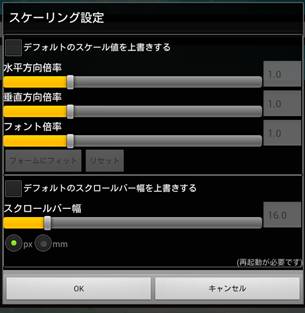
Display Magnification-related
| □ Override the default scale value If you press the [OK] button with the check box checked, each magnification will be reflected immediately and displayed. If you press the [OK] button with the check unchecked, each magnification will be returned to “1.0”. |
| □ Horizontal magnification Specify the display magnification in the horizontal direction (X, Width, etc. ) . |
| □ Vertical magnification Specify the display magnification in the vertical direction (Y, Height, etc. ) . |
| □ Font magnification Change the display magnification of the font. |
| □ [フォームにフィット] “Fit form” button It is enabled when “Override default scale value” is checked. When pressed, the magnification value that fits the form directly under the Root is automatically set in each magnification column. When you press [ OK ] , it will be displayed at the set magnification. |
| □ [リセット] “Reset” button It is enabled when “Override default scale value” is checked. Set “ 1.0 “ in each magnification field . When you press [ OK ] , it will be displayed at the set magnification. |
※It will not work if Form does not exist or the script is stopped due to an exception.
※Script scaling related descriptions will not be updated.
[Scroll bar width-related]
| □ Override the default scrollbar width If you press the [ OK ] button with the check box checked, the scroll bar will be displayed with the value set by the scroll bar width. If you press the [ OK ] button with the check unchecked, the scroll bar will be displayed with the default width. |
| □ Scroll bar width Specifies the scroll bar width. ○ px setting Specify the unit of scroll width in pixels. ○ mm setting Specify the scroll width unit in millimeters. |
※It will not work if Form does not exist or the script is stopped due to an exception. ※Script scaling related descriptions will not be updated.
Shortcut creation screen
Like the PC version, Biz / Browser AI allows you to create shortcuts to run any CRS directly.
There are two main ways to create shortcuts: “Create from Biz / Browser AI” and “Create from Android home app”.
When creating a shortcut from Biz / Browser AI, it is possible by performing the following operations.
| 1. Start Biz / Browser AI. |
| 2. In the bookmark list on the login screen that is initially displayed, long-tap the bookmark for which you want to use the shortcut. |
| 3. The「ブックマークメニュー」”Bookmark Menu” dialog will be displayed. Tap the 「ショートカットを作成」”Create Shortcut” button. |
This is a function added from XAI Ver. 1.0.2. For 1.0.1.0 or earlier, please use the “Create from Android home application” method described later.
When creating a shortcut from the Android home app, the creation method differs depending on the Android OS version and the device home app. Generally, it can be created by the following method.
| ○ When running on Android 2.x series Long tap the home screen → Tap 「ショートカットの作成」”Create shortcut” in the 「ホーム画面に追加」”Add to home screen” dialog and select Biz / Browser. |
| ○ When running on Android 3.x series Tap the “+” button at the top of the home screen → tap the「その他」”Other” tab, and then select Biz / Browser . |
| ○ When running on Android 4.x series Tap the 「ウィジェット」”Widget” tab of the drawer ( app list screen ) → long tap the Biz / Browser icon → release your finger at the place where you want to place the shortcut. |
“Create shortcut” screen each item
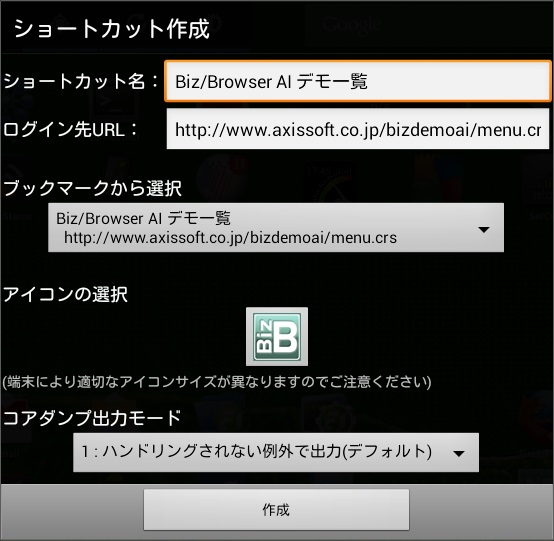
| □ Shortcut name Specify the character string displayed at the bottom of the shortcut icon. |
| □ Login URL Specify the URL of the CRS to log in automatically after starting Biz / Browser . |
| □ Select from bookmarks You can select the “shortcut name” and “login destination” from the URLs registered in the bookmarks of Biz / Browser . |
| □ Icon selection Tap to display the dialog for selecting the icon. Please note that the appropriate icon size depends on the Android OS version and device resolution. |
| □ Core dump output mode Added from AI Ver. 1.0.2 If an unhandled exception is caught in the CRS execution engine while Biz / Browser is running, debug information (core dump) is output and processing is interrupted. Starting with Biz / Browser AI 1.0.2.0, the output control of this debug information (core dump) can be specified from the shortcut creation screen. The following modes can be specified for the core dump output mode. |
| Value | Explanation |
|---|---|
| 0 | Does not output debug information ( core dump ) |
| 1 | If an unhandled exception occurs, debug information ( core dump ) is output. If a core dump already exists, it will be overwritten. ( Equivalent to the operation of the conventional Biz / Browser ) |
| 2 | Debug information ( core dump ) is output every time an exception occurs, regardless of whether it is handled or not. A task ID and a 4 -digit serial number are assigned to the core dump file name, and a new core dump is created each time a core dump is output. |
1 is selected by default.