2.7. Scaling Operation
In Biz / Browser V or later, Biz / Browser Mobile 4.5 or later, and Biz / Browser AI, it is now possible to perform pseudo scaling and aspect ratio changes using the properties HorizontalScale, VerticalScale, and FontScale added to the Form class.
Principle of scaling
Even in the conventional Biz / Browser, it was possible to automatically adjust the size of the object under the form at the position and size of the upper form in a pseudo manner by using the reference formula.
Form frmMain {
    X = 0;
    Y = 0;
    Width = 600;
    Height = 400;

    Button btnExit {
        X & = 50 * (^. Width / 600);
        Y & = 50 * (^. Height / 400);
        Width & = 100 * (^. Width / 600);
        Height & = 60 * (^. Height / 400);
    }
    TextBox  txtInput {
        X & = 200 * (^. Width / 600);
        Y & = 50 * (^. Height / 400);
        Width & = 200 * (^. Width / 600);
        Height & = 50 * (^. Height / 400);
    }
}
However, it was not a good method in terms of execution speed and development productivity. Also, since the font cannot be specified except when it was created, the font size could not be changed dynamically.
With the newly added properties, it is possible to achieve the same effect at high speed with clean coding. Coordinates are automatically calculated and rearranged on the screen for the objects that exist under the specified Form.
The CRS code that has the same effect as above is as follows.
Form frmMain {
    X = 0;
    Y = 0;
    Width = 600;
    Height = 400;
    HorizontalScale &= Width / 600;
    VerticalScale &= Height / 400;
    FontScale &= Width / 600;

    Button btnExit {
        X = 50;
        Y = 50;
        Width = 100;
        Height = 60;
    }
    TextBox txtInput {
        X = 200;
        Y = 50;
        Width = 200;
        Height = 50;
    }
}
Since the properties of the objects under it do not change, it is possible to design the screen based on the logical values and implement it so that it matches the display size as appropriate.
In addition, the font size can be dynamically scaled, making it behave as if it were scaled up or down.
Since the font size can be set to the enlargement / reduction ratio independently of the object size, fine adjustments such as slightly smaller than the enlargement ratio of the screen are possible.
Precautions for scaling operation
Scaling behavior is a mechanism that dynamically changes the size of an object, not scaling the image.
Therefore, the width of the border and scroll bar displayed by the specified value of the OS is not affected by the enlargement / reduction.
Therefore, the effective area in the object is wide when zoomed in and narrow when zoomed out.
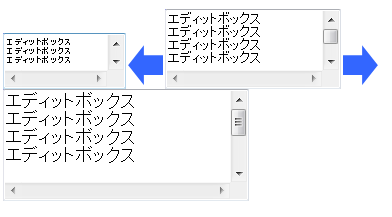
Some classes prioritize the accuracy of effective domain scaling and automatically correct the size of the object to a value that differs from the actual magnification.
Please refer to the explanation of each class for details.
Also, since the coordinate system is an integer value, if you specify a magnification that includes a decimal number, a round-down (round-up) error may occur in 1-pixel units.
For Font Scale, the magnification is rounded in points. Therefore, the amount of change is larger than the scaling of the coordinates.
When designing the screen using the scaling operation, make sure to design with a margin in the display area.